
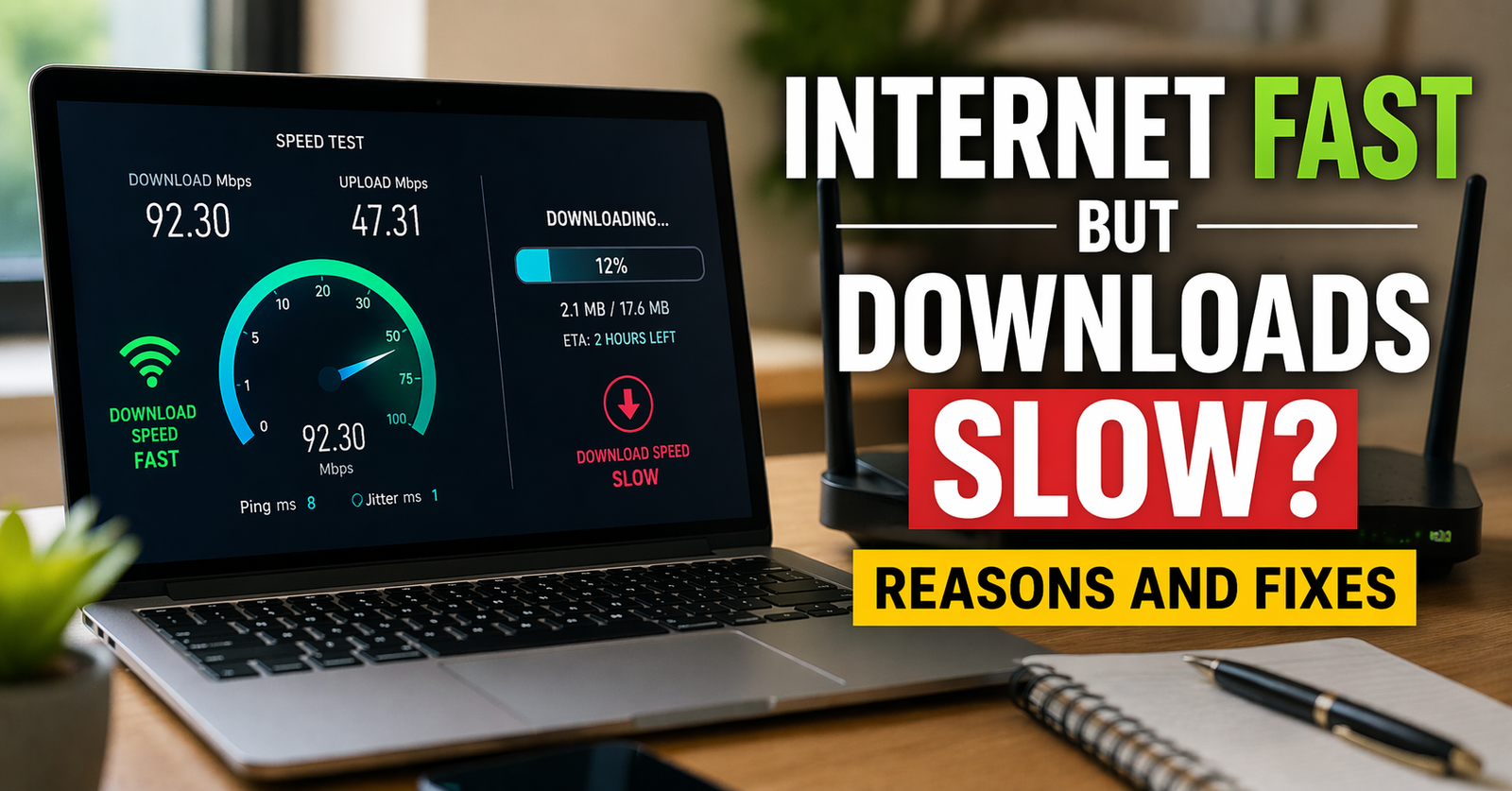
In many homes, users notice that internet speeds appear fast on tests, yet downloads remain slow.
In typical usage conditions, this issue usually occurs due to server limitations, background activity, WiFi instability, or device performance bottlenecks and many other factors , but yes, not the internet connection itself is the reason
Even with high-speed plans like 200 Mbps or 500 Mbps, actual download speeds vary because internet speed reflects a maximum theoretical limit, while real performance depends on server capacity, network conditions, and device efficiency. For example, understanding whether 500 Mbps is really fast in real life helps explain why high speeds don’t always translate into faster downloads.
Speed tests use optimized high-performance servers, while real downloads depend on the website or platform hosting the file, such as Google Drive, Steam, Microsoft Update servers, Dropbox, or smaller website servers.. This is why real internet speed vs actual performance often doesn’t match test results.
This is why many users experience internet fast but downloads slow in speed, even when speed test results appear normal.
Speed Test vs Real Download Speed
One of the most common questions is: why is my internet fast but downloads are slow?
Speed tests measure your connection using high-performance, optimized servers, while actual downloads depend on the source server’s speed and limitations.
This means you can have high Mbps but still experience slow downloads if the server cannot deliver data fast enough.
This is why many users see speed test fast but download slow in real usage. Speed tests use optimised servers, whereas real downloads rely on external sources.
According to the Federal Communications Commission (FCC), advertised internet speeds represent maximum potential under ideal conditions, not real-world performance.
This is why real internet speed vs actual performance often doesn’t match test results.
How to Identify the Problem in 60 Seconds ?
If your internet is fast but downloads are slow, you can quickly identify the root cause using these simple checks. This method is based on common real-world troubleshooting patterns and works in most cases.
- If download speed changes across websites → the issue is the server (download source)
- If another device gets better speed → the issue is your device performance
- If Ethernet is faster than WiFi → the issue is WiFi instability or interference
- If speed drops with multiple devices → the issue is network congestion
In most situations, these quick checks can pinpoint the exact problem within a minute without needing advanced technical knowledge.
The Situation Most People Face
Everything seems fine at first.
The speed test shows:
- 200 Mbps or300 Mbps or 500 Mbps ( depending on your plan)
Streaming works smoothly. Browsing feels fast.
However, the moment a file starts downloading, the speed suddenly drops to:
1–2 MB/s or even less
At this point, it feels like the internet is broken but that’s not actually the case.
Why Downloads Are Slow Even With Fast Internet ?
Internet speed shows the maximum capacity of your connection. It tells you how much data your network can handle under ideal conditions.
However, actual download speed depends on multiple real-time factors, including:
- Where the file is coming from (server speed)
- How many devices are using the network (bandwidth sharing)
- How stable your connection is (WiFi or network quality)
For example, even if your internet supports high speeds, a slow or overloaded server can limit how fast data is delivered to your device. Similarly, if multiple devices are active or the connection is unstable, the available speed gets divided or fluctuates.
In simple terms, your internet provides the capacity, but your download speed is controlled by external conditions.
This is why fast internet does not always guarantee fast downloads even on high-speed internet connections.
11 Reasons Behind Internet Fast but Downloads Are Slow
1. The Download Source is Slow (Most Common in Real Cases)
In real-world usage, this is the most frequent reason behind slow downloads.
Across multiple user discussions on tech forums and communities, a common pattern appear:
The same file downloads at completely different speeds depending on the source.
For example:
- A file from a small or unknown website may download at 1–2 MB/s
- The same file from a well-optimized platform (like cloud storage or CDN-based services) can reach 15–30 MB/s or more
This phenomenon happens because many websites:
- Limit bandwidth per user
- Use low-performance servers
- Don’t have global content delivery networks (CDNs)
In simple terms, the server decides how fast it sends data, not your internet plan.
What to do:
- Try a different mirror or download source
- Prefer trusted platforms or official links
- If speed improves instantly, the issue is confirmed to be server-side
2. Background Activity Quietly Consumes Bandwidth
In many cases reported by users, slow downloads happen even when “nothing is running.”
However, a deeper check usually reveals hidden activity such as:
- System or OS updates running in the background
- App stores auto-downloading updates
- Cloud sync services (like backups or file syncing)
For example:
Users often notice download speeds improving significantly after pausing updates especially on Windows or Android devices.
This happens because bandwidth is shared, and background tasks silently take priority.
What to do:
- Check network usage in Task Manager or system settings
- Pause updates, cloud sync, and app downloads temporarily
- Re-test download speed after stopping background processes
3. WiFi Looks Strong but Performs Unstable
A common misconception is the following: Full signal bars = full speed
However, actual behaviour shows otherwise.
From user reports and practical testing:
- Speed can fluctuate even with strong signal strength
- Minor distance changes or obstacles (walls, furniture) can affect stability
- Interference from nearby networks (especially in apartments) reduces performance
For example:
A connection may show full signal but still drop from 20 MB/s to 3–5 MB/s intermittently
This happens because WiFi prioritizes connectivity over consistency.
What to do:
- Move closer to the router for testing
- Switch to Ethernet to check if stability improves
- If Ethernet is faster, WiFi interference is the cause
4. Multiple Devices Competing for Bandwidth
Modern households rarely use the internet on a single device.
Typical network usage includes:
- Smart TVs streaming content
- Phones running apps in background
- Laptops syncing files or downloading updates
From real user experiences:
Download speeds drop noticeably when multiple devices are active—even on high-speed plans.
For example:
- 200 Mbps connection with 5 active devices
- Download speed may drop significantly due to shared bandwidth
Bandwidth is distributed, not reserved for one device.
What to do:
- Pause streaming or heavy usage on other devices
- Test downloads when the network is idle
- Observe if speed improves
5. Router Becomes a Hidden Bottleneck
This is one of the most overlooked causes.
Many users upgrade to faster internet plans but continue using older routers.
From practical cases:
- A 200–300 Mbps plan paired with an outdated router often results in reduced real-world speed
- Some routers cannot efficiently handle multiple connections or higher bandwidth
For example:
Users upgrading their router often report immediate improvements in download stability and speed.
The router acts as the gateway—if it’s weak, performance drops.
What to do:
- Restart the router to clear temporary issues
- Check router specifications (especially for high-speed plans)
- Upgrade if it is outdated or entry-level
6. Device Performance Can Limit Download Speed
In many situations, the internet connection is blamed, but the actual issue lies in the device.
From real observations:
- Older laptops with HDD storage struggle to maintain high download speeds
- Devices with limited processing power cannot handle high data throughput efficiently
For example:
- Same network
- Same file
- Older device → slower download
- Newer device → significantly faster
This shows that download speed is also influenced by hardware capability.
What to do:
- Test downloads on another device
- Check if performance improves
- Consider storage type (SSD vs HDD) and system load
This clearly explains the difference between internet speed vs download speed, where real performance depends on multiple external factors.7. ISP Network Congestion During Peak Hours
In many residential areas, download speeds often slow during evening hours when more users nearby are online at the same time. This is commonly caused by local network congestion rather than a fault with your router or device.
Many users notice faster downloads late at night or early in the morning when overall network demand is lower.
For example, a file that downloads slowly at 8 PM may complete much faster after 11 PM.
Common Sign: If speeds improve consistently outside peak hours, the slowdown is often due to shared network congestion rather than your internet plan.
What to do:
- Test downloads at different times of day
- Schedule large downloads during off-peak hours
- Contact your provider if slowdowns happen regularly
8. Antivirus or Security Software May Delay Downloads
Security software scans downloaded files before they are opened. This can delay completion of downloads, especially with large installers, ZIP files, or multiple files at the same time.
This happens because antivirus tools use real-time protection to check file signatures, scan archives, and inspect suspicious activity before allowing the file to be fully saved.
The effect is more noticeable on older systems or devices with limited CPU and RAM.
For example, a file may appear downloaded but takes extra time before it is ready to open.
What This Means: In some cases, the internet download finishes normally, but security scanning delays the final save process on the device.
What to do:
- Allow the scan to complete normally
- Keep antivirus protection enabled
- Close unnecessary apps if the system feels slow during downloads
9. VPN or Proxy Can Reduce Download Speed
VPNs and proxies route your traffic through an additional server before reaching the destination. This extra step can reduce download speed due to longer routing paths, encryption overhead, or overloaded VPN servers.
The impact varies depending on provider quality, server distance, and current server load.
Many users notice downloads improve immediately after disconnecting a slow or distant VPN server.
Quick Check: A nearby high-quality VPN server may perform well, while a distant or crowded server can slow downloads significantly.
What to do:
- Test downloads without VPN temporarily
- Switch to a closer server location
- Use a reliable provider with faster servers
10. Download Server is Far From Your Location
The physical distance between your device and the file host can affect download performance. Files served from nearby regional servers often download faster than those hosted in another country because the data passes through fewer network routes.
This becomes more noticeable with large files or busy international routes.
For example, the same file may download faster from a local mirror than from an overseas server.
Practical Tip: Many major platforms use regional servers automatically, which is why trusted services often download faster than smaller websites.
What to do:
- Choose the nearest mirror or region if available
- Use official download pages with multiple server options
- Compare speeds from another source
11. Slow or Nearly Full Storage Can Affect Downloads
Internet speed is only one part of the process. Your device must also save incoming data to storage fast enough. If the storage is slow or nearly full, downloads can appear slower even when the internet connection is working normally.
Many users notice large files getting stuck near 99%, taking extra time to open after download, or the device becoming sluggish during the process.
This is more common on older HDD-based computers, budget phones with slower storage, or devices running low on free space.
Important Note: If speed tests look normal but large files save slowly or pause near completion, storage performance may be the real bottleneck rather than the internet connection.
What to do:
- Free up storage space
- Restart the device
- Use SSD storage where possible
- Test the same download on another device
Quick Reality Check
Based on common troubleshooting patterns, the table below helps quickly identify the root cause:
| Situation | What It Means |
| Slow on one website | Server issue |
| Slow on all websites | Network issue |
| Slow on one device | Device limitation |
| Slow only on WiFi | Signal or interference issue |
What Actually Fixes the Problem (Tested Approach)
Instead of randomly trying fixes, a simple step-by-step check can quickly identify what’s really causing slow downloads.
Based on practical testing, the issue becomes clear within a few minutes when tested properly.
1. Try Downloading from Another Source
Start by downloading the same file (or a similar file) from a different website.
In many user-reported cases, speed changes instantly when switching sources.
For example:
A file from an unoptimized or overloaded server may stay at 2–3 MB/s
The same file from a high-performance platform like Google Drive or GitHub can reach 15–20 MB/s or higher
This is one of the most common causes of slow download speed despite fast internet connection.
2. Test on a Different Device
Next, try the same download on another device connected to the same network.
This helps isolate whether the limitation is device-related.
For instance: Older laptops often show slower speeds. Newer phones or systems may perform significantly better on the same connection.If speed improves on another device, the problem is not the network.
3. Pause Background Activity
Before testing further, check if anything is using your internet in the background.
In everyday usage,, bandwidth is often consumed by hidden processes running without visible alerts.
Common background activities include:
- System updates (Windows, Android, iOS)
- App or game downloads
- Cloud syncing services like Google Drive, Dropbox, or OneDrive
- Streaming apps running in the background
Quick check: Open Task Manager (Windows) or Data Usage settings (mobile) to identify active network usage in real time.
Expert insight: Even a single background update can consume 30–80% of available bandwidth, especially on slower connections.
Once paused, download speeds often improve immediately.
This confirms that bandwidth was being shared across multiple processes.
4. Switch to Ethernet or Move Closer to Router
WiFi instability is a very common but often overlooked factor.
In real-world usage scenarios, signal strength drops significantly with distance and physical obstacles like walls or furniture.
Testing with:
- Ethernet connection
- Or sitting closer to the router
Often results in more stable and higher speeds.
Recommended distance: For optimal performance, stay within 3–5 meters (10–16 feet) of the router with minimal obstructions. Beyond this range, signal degradation and interference become more noticeable.
If performance improves, the issue is likely related to WiFi interference, distance, or signal instability.
5. Restart the Router
A simple router restart can resolve temporary issues such as:
- Network congestion
- Memory overload (RAM cache buildup)
- Connection instability or packet loss
In real-world usage scenarios, routers run continuously and gradually accumulate temporary data, background processes, and connection errors, which can reduce performance over time.
Recommended practice: Restart your router every 7–14 days to maintain stable performance, especially if multiple devices are connected.
How to do it properly:
Turn off the router, wait 30–60 seconds, then power it back on. This allows the system to fully clear memory and re-establish a clean connection with your ISP.
Expert insight: A proper restart resets active sessions and clears internal memory, which can immediately improve speed, latency, and connection stability.
What This Process Reveals?
By following these steps in order, the actual cause becomes clear instead of relying on guesswork.
In most cases, the issue falls into one of these:
- Server limitation
- Background usage
- WiFi instability
- Device performance
This approach saves time and avoids unnecessary upgrades or changes.
Important Insight
Upgrading from 100 Mbps to 300 Mbps often does not improve download speed.
This is because the limitation is usually the server, device, or network conditions—not the internet plan itself.
Mbps vs MB/s (Important for Understanding Speed)
Many users confuse Mbps with MB/s:
- Mbps (Megabits per second) is used by ISPs
- MB/s (Megabytes per second) is actual download speed
👉 1 Byte = 8 bits
👉 So, 200 Mbps ≈ 25 MB/s (maximum theoretical speed)
This is another reason why users feel their downloads are slower than expected.
Conclusion
Fast internet does not always guarantee fast downloads because actual performance depends on server speed, network conditions, and device capability.
In most cases, the issue is not your internet connection but external limitations such as slow servers, background activity, or network instability.
By following a simple step-by-step approach, you can quickly identify the real cause and fix slow download speeds without unnecessary upgrades.
FAQs
Why is my internet fast but downloads are slow?
Because download speed depends on server performance, network conditions, and device capability not just internet speed.
Why is the speed test fast but the download slow?
Speed tests use optimized servers, while real downloads depend on external servers with limitations.
How to fix slow download speed on fast internet?
Identify the bottleneck (server, device, WiFi, or background activity) and optimize accordingly.
Why is download speed slow but internet fast?
Because download speed depends on the server and network conditions, not just the internet speed.
Does higher Mbps increase download speed?
Only up to a limit. If the server is slow, higher Mbps will not make a difference.
Can WiFi cause slow downloads?
Yes, unstable WiFi can reduce actual performance even if signal strength looks good.
Why are downloads slower at night?
This is due to higher network usage and congestion during peak hours.

